You will see a small i icon in various places if you are an Apple Watch user. This ‘i’ icon appears on the Apple Watch, in the Watch app on your iPhone, and on Apple’s support website. The i icon on your Apple Watch is a useful tool for viewing additional information and pairing your watch with your iPhone. This i icon serves more or less the same purpose across iOS and iPad.
In this article, we will explain where you can find the ‘i’ icon on your Apple Watch and how to use it, the following post will help you understand it.
What is the ‘i’ icon on an Apple Watch?
The i icon on the Apple Watch tells you to get additional information to help you manually pair your watch with an iPhone. This icon will only appear if you haven’t paired your watch with an iPhone. You can use the i icon to start the manual pairing process.
If you don’t see the icon in the lower right corner of the watch, it’s likely that the Apple Watch is still paired with your iPhone.
Where is the ‘i’ icon on an Apple Watch?
You’ll see the first “i” icon on the Apple Watch’s initial setup screen. You’ll usually find the icon in the lower-right corner of the Apple Watch.
If you want to pair your Apple Watch with your iPhone, tap the “i” icon to pair your iPhone and watch manually.
How to Unpair Apple Watch Manually Using the ‘i’ Icon?
If you ever want to unpair your Apple Watch from your iPhone, you’ll need to locate the same “i” icon within the Watch app on your iPhone.
Here’s how to unpair Apple Watch:
1. Open the Watch app on your iPhone.
2. Go to My Watch and tap All Watches at the top of the page.
3. Tap the “i” icon to the right of your selected watch.
4. Tap Unpair Apple Watch and then confirm you want to do this.
You have now successfully unpaired your Apple Watch.
How to Re-Pair an Apple Watch using the ‘i’ Icon?
If you need to re-pair your Apple Watch, you can start the process by using the “i” icon on your watch. It only takes a few moments.
1. Turn on your Apple Watch and wait for the pairing screen to appear.
2. Then Tap the “i” icon in the lower right and then select your language.
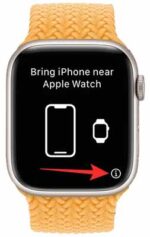
3. Tap Start Pairing on the Watch.
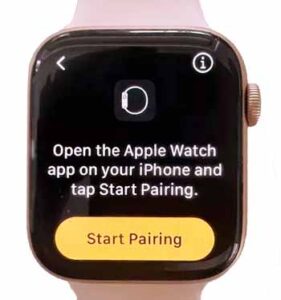
4. You will now see an animation QR code on your watch. You can add Apple Watch by scanning the QR code. But if you want to do it manually then tap on the “i” icon at the bottom right.
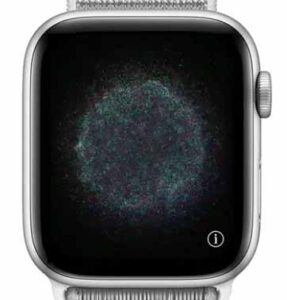
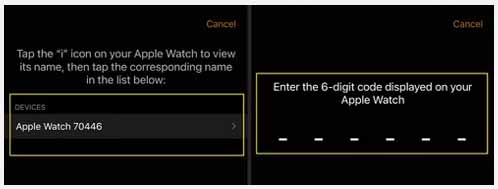
5. The watch will display a device number for manual pairing through the watch app.
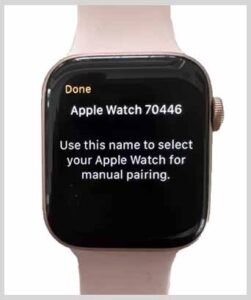
6. On your iPhone, Tap Apple watch manually.
7. A name will appear on your Apple Watch, which will also appear on your iPhone Tap on this name. Enter the six-digit code displayed on your watch and that’s it.
You can then sign in with your Apple ID to continue setting up your watch, or restore a backup if you have one from a previous Apple Watch.
Why is there no I icon on my Apple Watch?
If you don’t see the icon at the bottom right of your watch screen, don’t worry. The absence of this “i” icon probably means that the Apple Watch is still paired with your iPhone, and there’s nothing to worry about if you use both devices.
And if not, then you need to reset, for that you need to go to Settings > General > Reset.
After doing this, you need to do manual pairing again by clicking on the ‘i’ icon.
FAQs About Apple Watch i Icon
Q. Where is the i icon on the Apple Watch for pairing?
The i icon is located at the bottom right corner of your Apple Watch.
Q. Can I use an Apple Watch without an iPhone?
The truth is that you can’t set up Apple Watch without an iPhone. You will need an iPhone to set up the Apple Watch, after which the Apple Watch can operate some functions independently.
Q. How do I unpair my Apple Watch without my old phone?
To unpair your Apple watch with your old phone, On your Apple Watch, tap Settings > General > Reset > Erase All Content and Settings.
Related Articles:
How to Transfer Facetime Calls from iPhone to Mac and iPad